Video recording · review · supervision
Supervision at the video – not from memory.
MC5 records therapy sessions, exercises and simulations. You mark and rate important moments with one click, and the discussion happens together at the video – on site, or with the supervisor through a link.
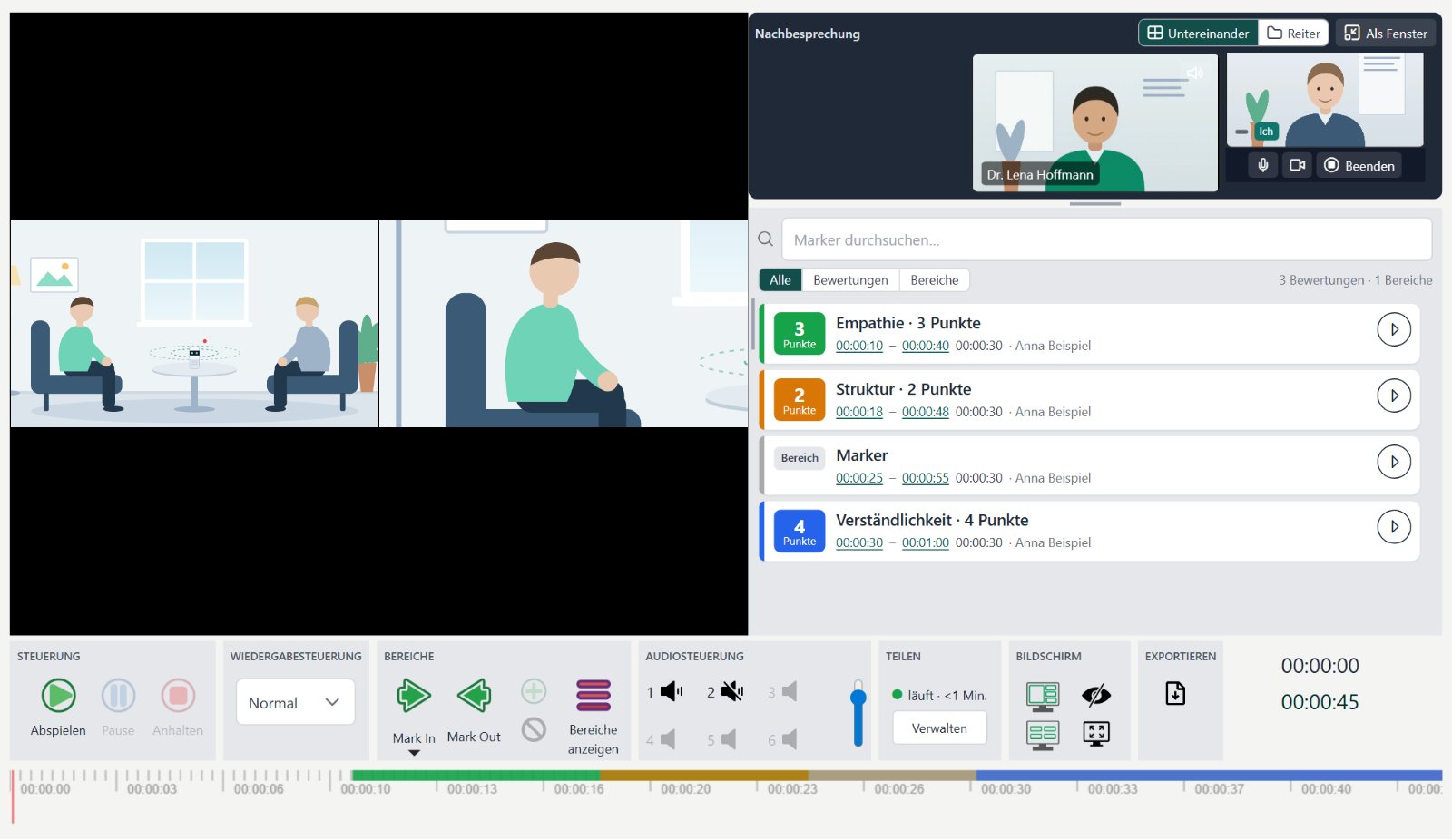
- Every camera in syncEach view of the room, at the same moment.
- Supervisor connectedThrough a link in the browser – no account, no installation.
- Jump to ratingsOne click takes you to the marked moment.
- Ranges on the timelineColoured by your rating form.
- Videos stay in your building – no cloud
- Works without internet
- Debriefing end-to-end encrypted
- Interface in German and English
The problem
In supervision, often all that is left is what someone reports.
Psychotherapy training, communication training or courtroom simulation: learning from your own conversation needs the conversation itself – not the memory of it.
MC5 makes the session visible, searchable and something you can discuss together – without the videos ever leaving the building.
1
Memory instead of observation
Trainees never see their own behaviour from the outside. Feedback rests on whatever was remembered.
2
Travel costs time and money
Supervisors and examiners travel between sites. One cancelled train pushes a whole group’s supervision into the next week.
3
Video yes – but not in the cloud
Patient conversations need special protection. Many video tools store or relay through someone else’s servers.
Who it’s for
Who MC5 is made for
One software, two versions: compact for one room, or for whole buildings with many rooms.
Therapy practice
Record sessions with a meeting camera on the table, review progress with the patient, and bring a colleague in through a link for a second opinion.
MC5 Therapy
Training institute
Supervision without travel: the session is recorded on site and discussed together at the video, each person at their own desk.
MC5 Therapy or MC5
Hospital & university
Simulation and communication training in many rooms, OSCE exams with your own rating forms, and outside examiners watching live.
MC5
Legal training
Simulated court hearings with several cameras and pan-tilt cameras; mark contributions by role, such as judge, witness or expert.
MC5
Features
From the recording to the debriefing
The interface is cut down to what matters: large, labelled buttons, no training needed.
01 · RECORD
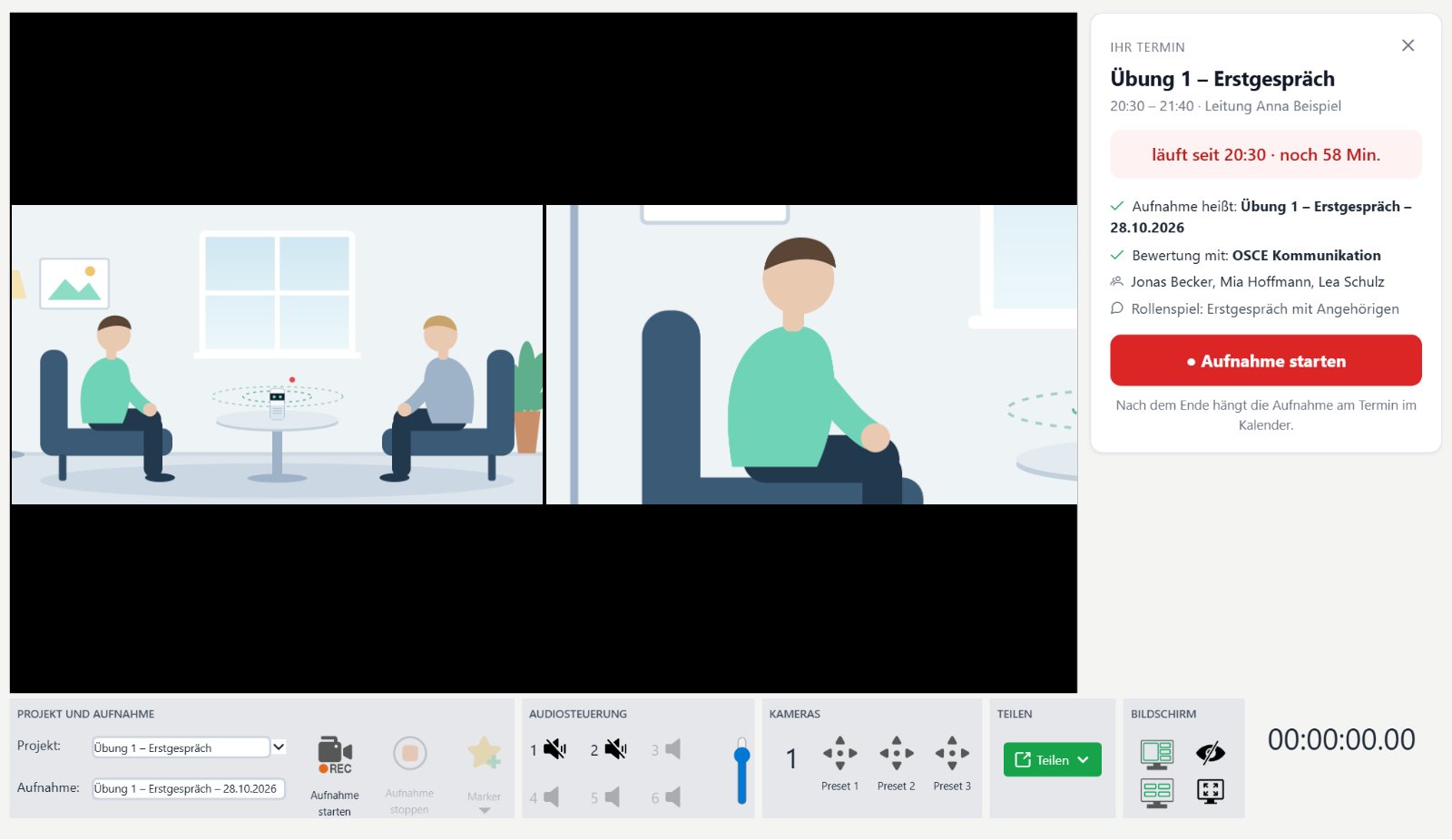
One click – every camera records
MC5 records all cameras of a room at the same time, in full picture and sound quality and independent of the internet. If a session belongs to it, the name, participants and rating form are already filled in.
- Network cameras, USB meeting cameras or the camera at the room PC
- Set markers while you record
- When storage runs low, MC5 warns you first and stops in time
02 · MARK & RATE
Find the important moments again at once
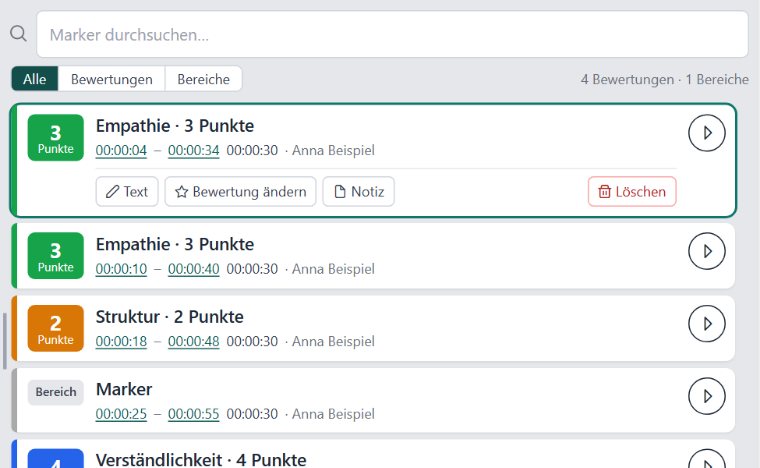
During playback you add ranges and point ratings, using your own rating form – for example empathy, structure and clarity.
- One click jumps to the moment – in every camera at once
- Ranges with mark-in and mark-out, coloured on the timeline
- Search the markers and filter by rating
03 · DEBRIEF
Supervision through a link – end-to-end encrypted
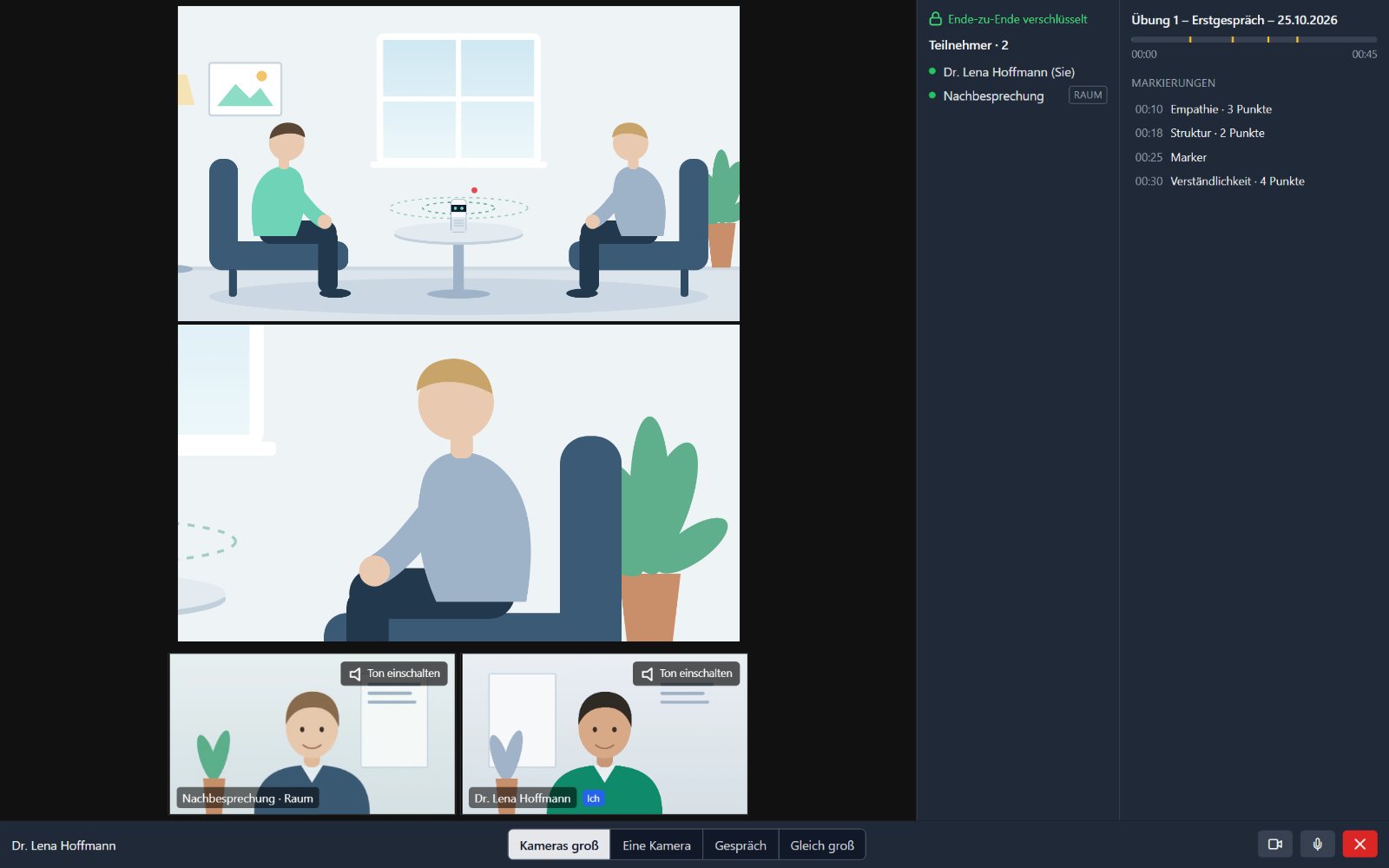
Pick a colleague from your list and click „Invite“. The supervisor opens the link in the browser and sees the same video in sync; pauses, jumps and new markers appear for both of you at the same moment.
- You can invite someone only after the consent is recorded
- The guest gets no file – they see the video only during the debriefing
- Afterwards: the agreed fee, PayPal, a receipt without patient data
04 · LET OTHERS WATCH LIVE MC5
Outside guests watch the room live
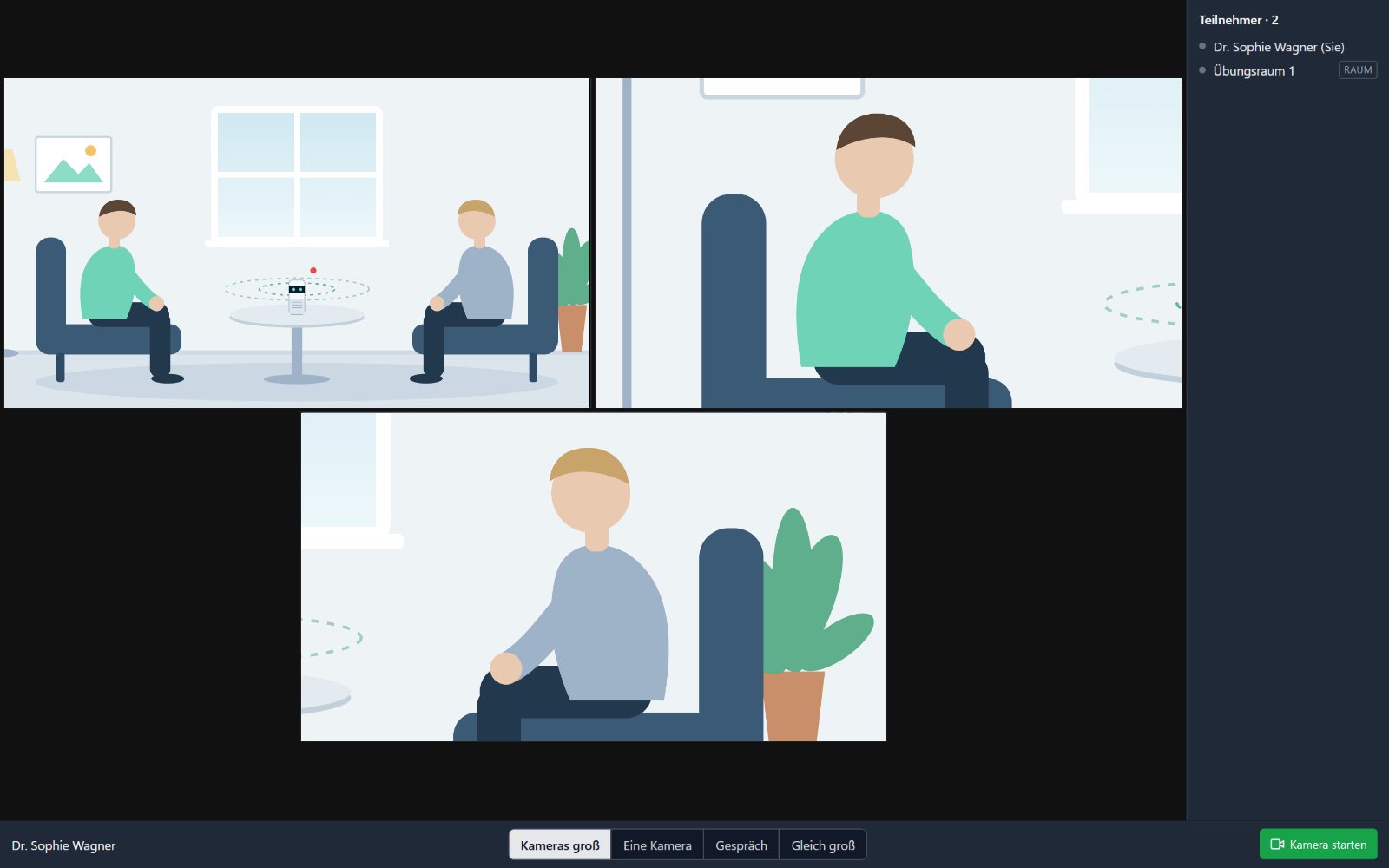
Examiners or teaching staff at another site watch a running exercise through a link. They type their name, choose a view, and join with their own camera if needed.
- Views: cameras large, one camera, conversation, equal size
- A participant list, so you always see who is watching
- One click stops sharing
05 · PLAN
Sessions, rooms and participants in one place
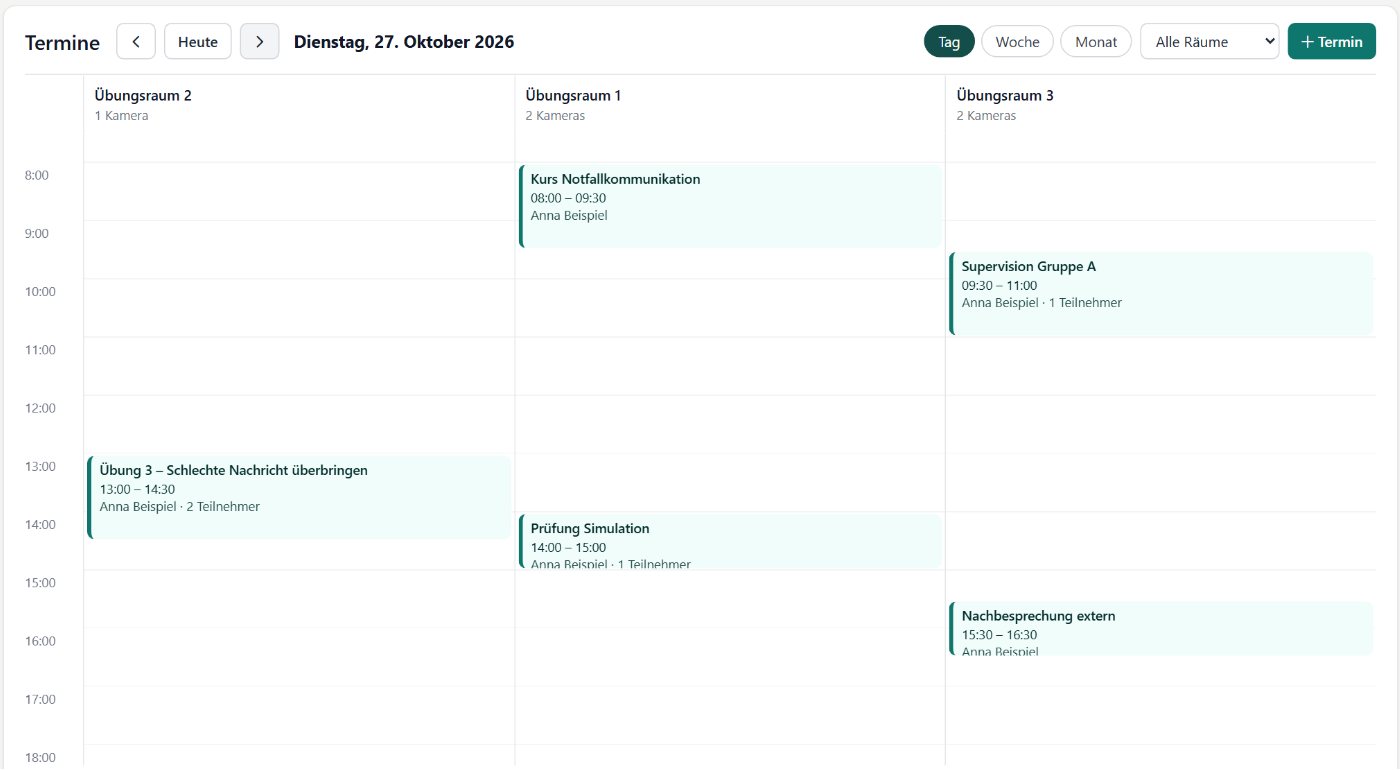
In the calendar you book rooms by day, week or month – with a lead, participants, a rating form and notes. Afterwards the recording is attached to the session automatically.
- Double bookings of a room are detected
- A guest link with a start time for outside supervisors
- „Today“ on the start page shows what is running and what comes next
06 · FOR YOUR IT MC5
One central computer, nothing but a browser in each room
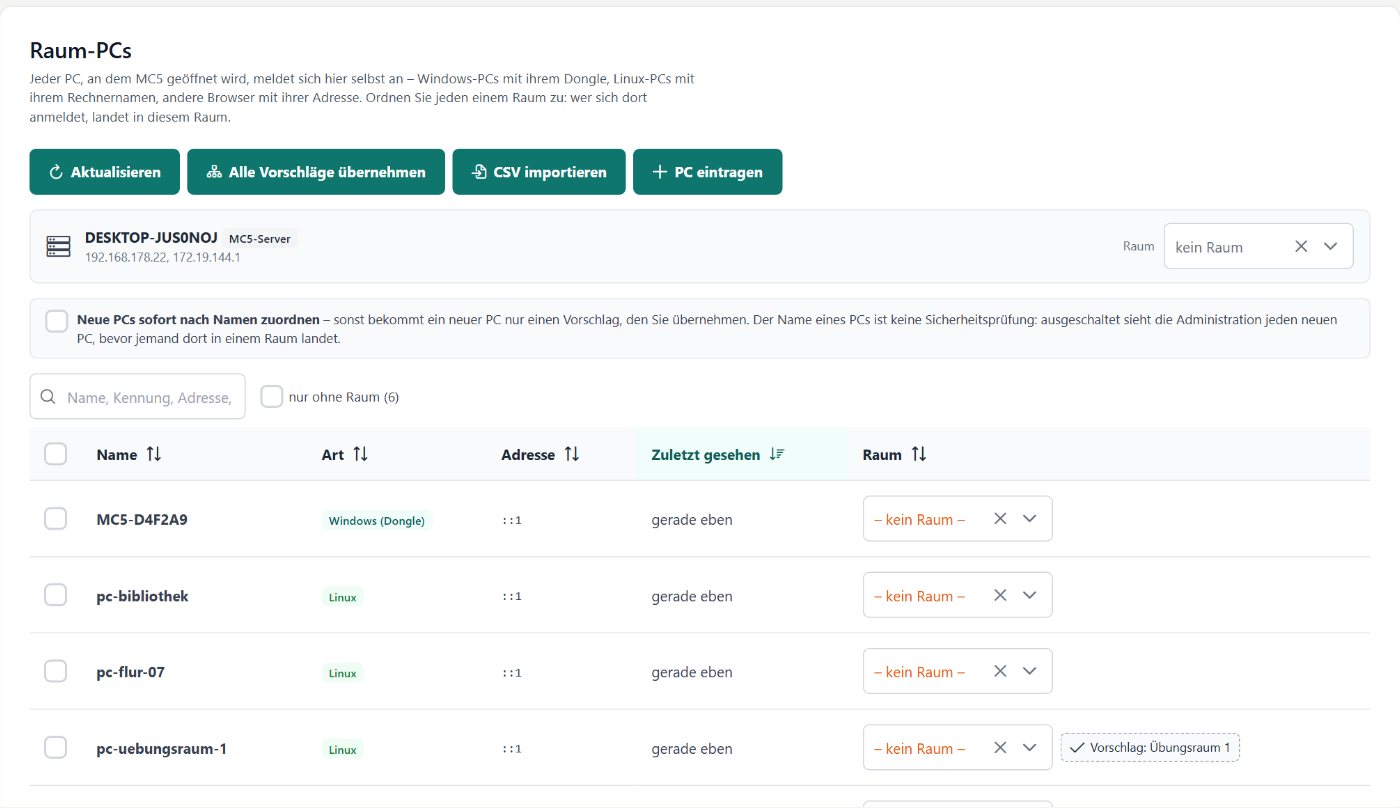
MC5 runs on a Linux computer on the building network. Room PCs report in by themselves; once a PC is assigned to a room, whoever logs in there lands in the right room.
- Find network cameras on the building network and add them with one password
- Roles: administration manages the technology but sees no recordings
- Installation package and administration handbook
Also included
- Export – video with all cameras side by side, marker list, subtitles
- Pan-tilt cameras with stored positions MC5
- Colleague list with e-mail and fee
- First-start wizard: camera, microphone, licence MC5 Therapy
- Tasks: create, assign, track MC5
- Start page with storage, rooms and today’s sessions
- Delete old recordings by date
- Colour schemes: Classic, Petrol, Night blue, Dark
- German and English throughout the interface
Privacy
Built for confidential conversations
No cloud for your videos, no account with the vendor, no server that can watch along.
The videos stay in your building
MC5 runs on your own computer. Recordings are never uploaded; recording and playback work without any internet too.
The key is only in the link
For a debriefing the key (AES-256) is created in the browser and sits in the link after the # sign – the part browsers never send to a server.
The relay is blind
When someone joins from outside, the MC5 gateway only passes the data through. It stores no recordings.
Each role sees only what it needs
Students, teaching staff and administration have separate interfaces. Administration manages technology and users, not the recordings.
Guests get no file
Supervisors see the video only while the debriefing is running. Afterwards the link no longer works.
Delete when you decide
You delete old recordings by date, to match your institution’s retention periods.
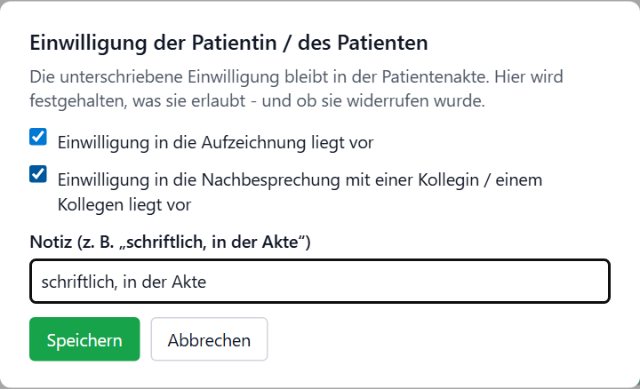
Consent for each recordingWithout recorded consent nobody can be invited to a debriefing.
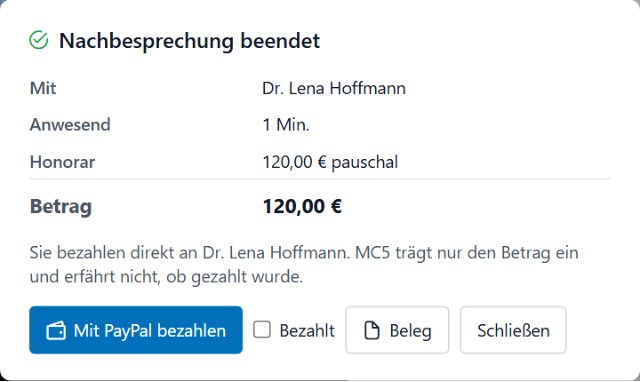
A receipt without patient dataYou pay the colleague’s fee directly; the receipt names no patients.
We are happy to answer your data protection officer’s questions during the demo.
Versions
From one practice PC to a whole building
The same software, the same interface. You need internet only when someone joins from outside.
One room, one PC
MC5 Therapy
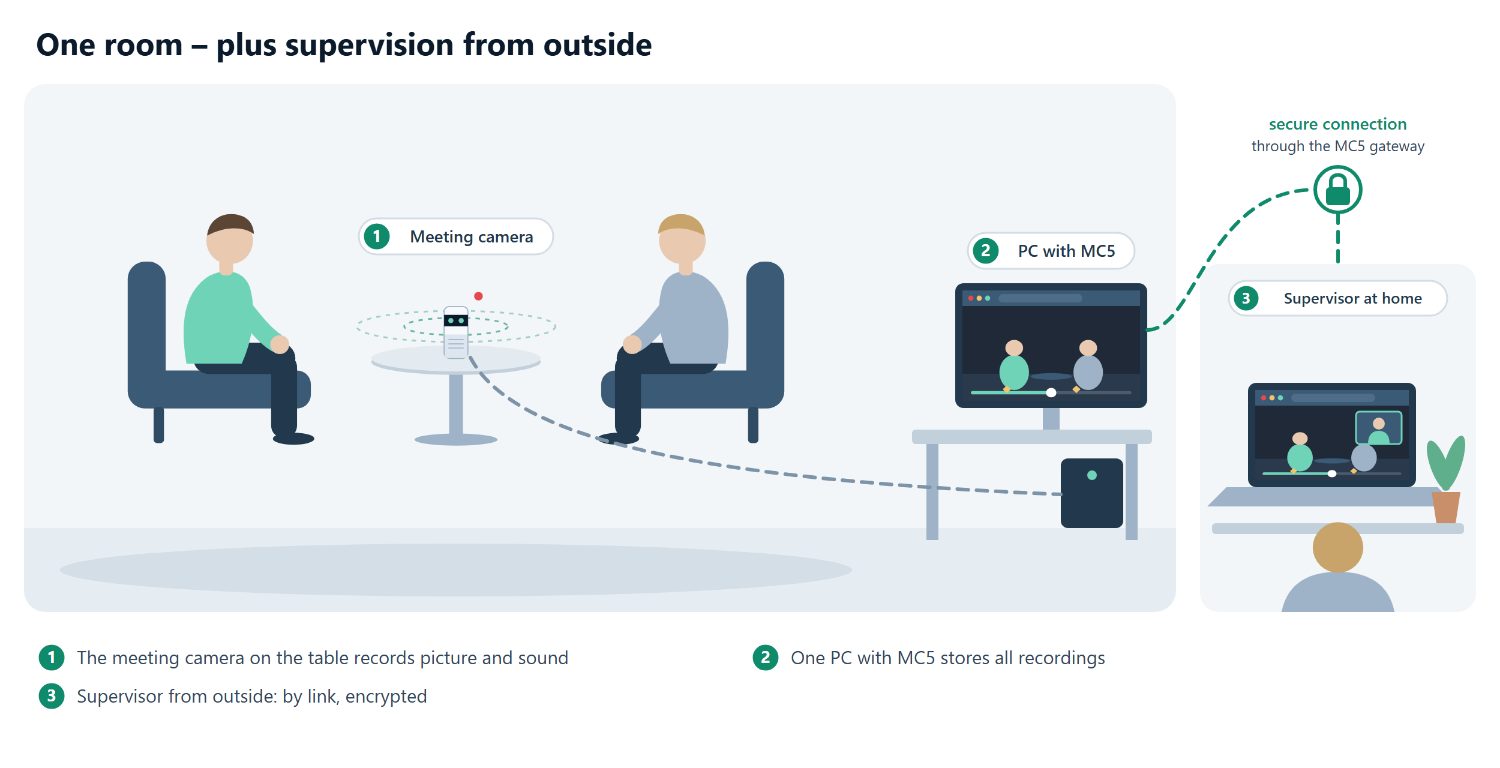
For a practice or a small institute. A USB meeting camera on the table, MC5 on the Windows PC – done.
Runs on
Windows PC or notebook
Camera
USB meeting camera, e.g. Meeting Owl
Set-up
installer and wizard
With outside supervision: colleagues join the debriefing through the MC5 gateway.
Many rooms, one central computer
MC5
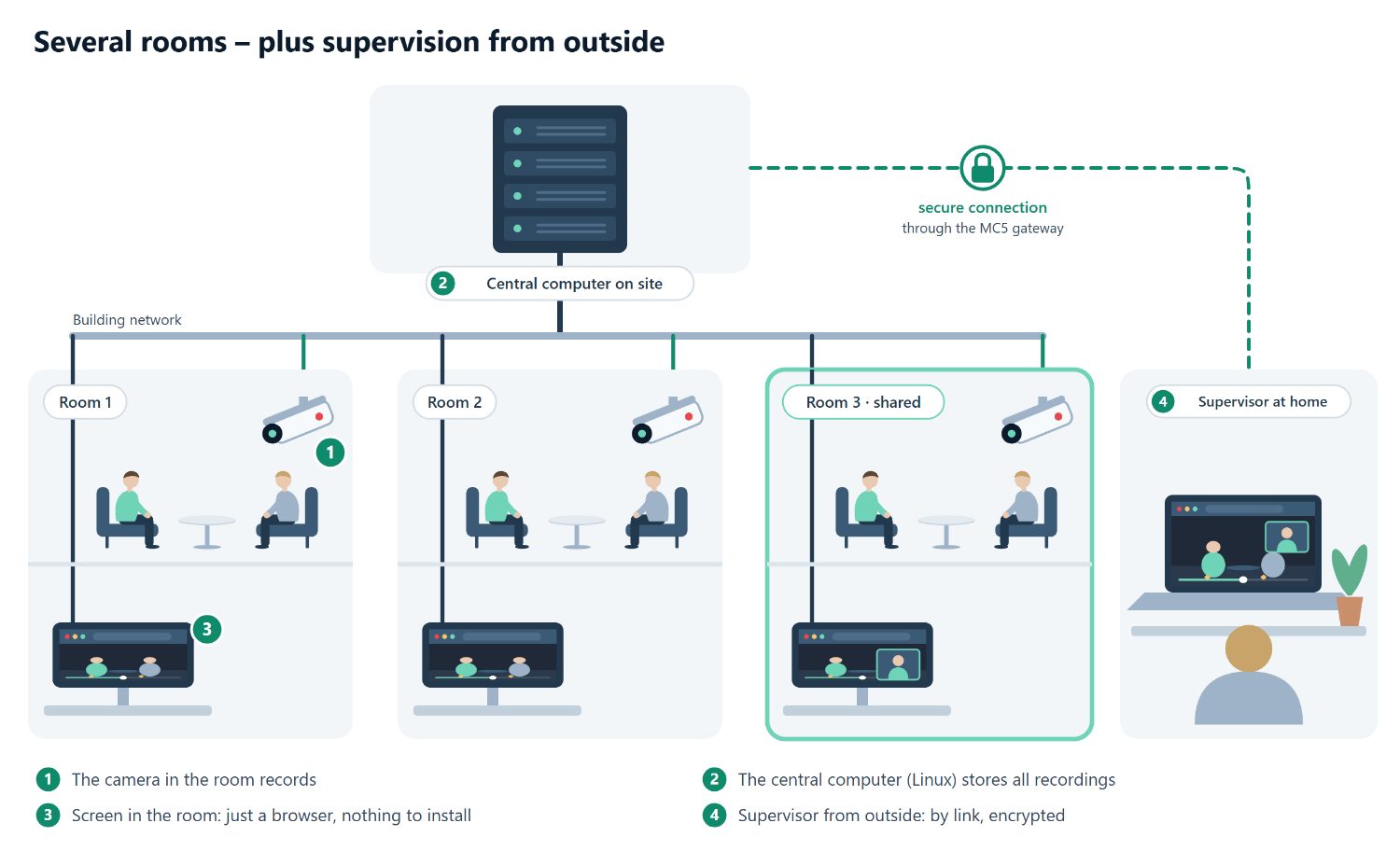
For universities, hospitals and large institutes. All recordings on one computer in the building, and only a screen with a browser in each room.
Runs on
Linux computer on the building network
Cameras
network, USB and pan-tilt cameras
Set-up
by your IT, with a handbook
With outside supervision: watch live and discuss recordings – the room PCs need no internet for this.
All differences in detail
| Feature | MC5 Therapy | MC5 |
|---|---|---|
| Recording, markers, ranges, point ratings | ✓ | ✓ |
| Export: video, marker list, subtitles | ✓ | ✓ |
| Calendar with sessions and participants | ✓ | ✓ |
| Debriefing through a link, end-to-end encrypted | ✓ | ✓ |
| Consent per recording, fee and receipt | ✓ | ✓ |
| Outside guests watch the room live | – | ✓ |
| Pan-tilt cameras with stored positions | – | ✓ |
| Room PCs, assigned to rooms automatically | – | ✓ |
| Create and track tasks | – | ✓ |
| Rooms | one | as many as you need |
Getting MC5
Your own system in three steps
You see MC5 in use before you decide.
Demo
We send you a link from our demo room. You see recording, review and debriefing in your own browser, and we work out which version suits you.
Set-up
You install MC5 Therapy yourself; a wizard walks you through camera, microphone and licence. MC5 for several rooms is set up by your IT with an installation package and a handbook.
Everyday use
Handbooks for teaching staff, students and administration explain every step with pictures.
FAQ
Frequently asked questions
Your question isn’t here? Ask it during the demo.
Does the camera disturb the conversation?
A meeting camera sits unobtrusively on the table, and nobody has to operate it. You start the recording with one click at the PC – visible to everyone, and only with consent.
Do I need internet?
No. Recording, marking, playback and export work entirely inside your building. You need internet only when someone joins from outside.
Where are the videos stored?
On your own computer: the practice PC with MC5 Therapy, the central computer in the building with MC5. Nothing is uploaded to a cloud.
What does the supervisor need?
A current browser and the link. No installation, no account, no password. They turn on their camera and microphone only if they want to.
Does the guest get a copy of the recording?
No. They see the video only while the debriefing is running, transmitted encrypted. When it ends, the link no longer works.
Which cameras can I use?
For a therapy room a USB meeting camera such as the Meeting Owl is enough – it records sound very well and shows the person who is speaking. Larger buildings add network cameras, including pan-tilt ones, or use the camera at the room PC.
How is the supervisor paid?
The agreed fee is stored in the colleague list. After the debriefing MC5 shows the amount, and you pay directly, for example by PayPal. The receipt contains no patient data.
What is the MC5 gateway?
A small relay server on the internet through which outside guests join. It stores no recordings, and for a debriefing it does not know the key.
Free demo
See MC5 in use – from your own office.
- You write to us and we agree on a date.
- At the agreed time we send you a link from our demo room.
- You open it in your browser – nothing to install, with personal advice.
Request a demo
media-4-cast GmbH
Auricher Str. 296
26721 Emden
Phone: 04921 – 99 36 340
Mobile: 0177 28 26 429
E-mail: office@media-4-cast.de
Our office can be reached Monday to Saturday.